


How to add Multiple Php versions in Windows
If you are working on a PHP project and using a local server like xampp in Windows and suddenly you came to know that you need the latest PHP version installed on your xampp server. But the problem here is xampp provides no easy steps to install the PHP version. You have to go through renaming, moving, and configuring a new installation or have to install a completely different xampp. Or the case can be, you want multiple PHP versions installed on your machine because your project A requires PHP version 5 and Your new project require PHP version 8, so again a big problem, so what will you do in such case?
Just ignore xampp, if you don’t want any problems in the future or lose your data while configuring multiple PHP versions. Just ignore it.
and Install Laragon, my favorite and soon will be yours.
Laragon is faster, easier lightweight, and provides a better User Experience, and easy navigation.
You can use Laragon for node, PHP, Python, and many more. You can install multiple PHP versions and multiple database versions. Also, a great feature you can use SSL in localhost, and one more thing you can use your local domains like your domain.test yourdomain.dev yourdomain.you, isn’t it great?
Let’s go to Laragon installation and install multiple PHP versions.
Step 1:
Download Laragon
Step 2:
Install Laragon to your desired location
Step 3:
Download PHP versions from php.net, choose the zip file according to your system architecture x64 or x86
Copy the downloaded zip file into laragon/bin/php. and Extract the zip file and delete the zip file.
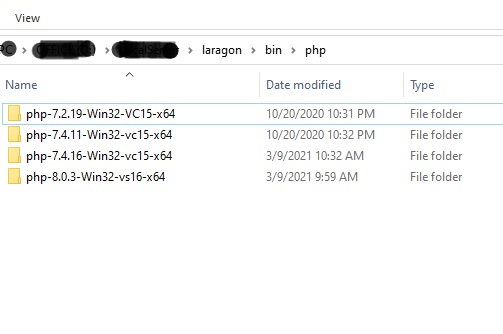
Step 4:
If you want to use MariaDB as your database, Download MariaDB from the official site. Download as zip.
Copy the downloaded zip file into laragon/bin/mysql/
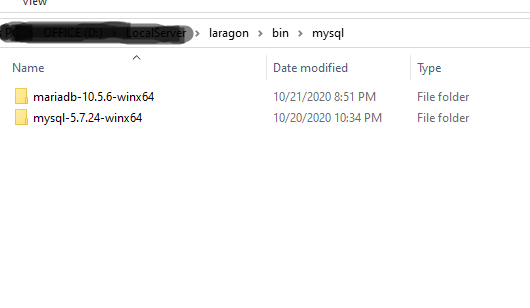
Step 5:
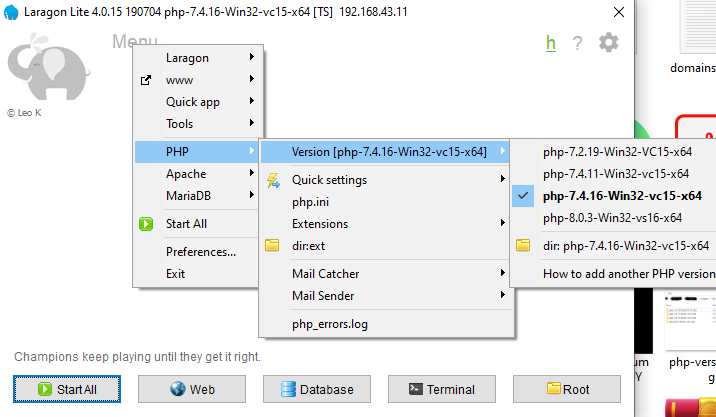
Now open Laragon from the start menu, hover on PHP -> versions -> choose your PHP versions ( you can switch to any version at any time )
Next, If you have copied MariaDB into laragon/bin/mysql, you will be seeing MariaDB in the menu list, and select your versions from the menu
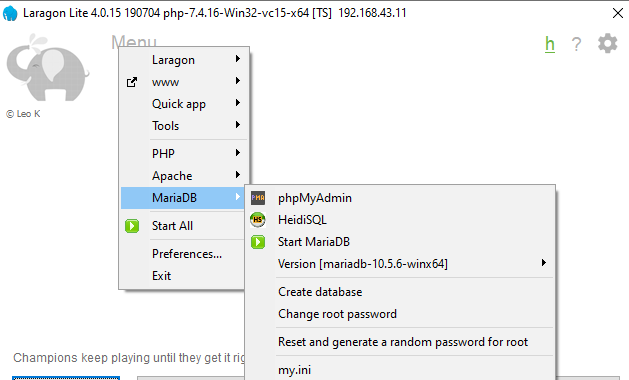
Done! Click on Start All or start one by one. Enjoy laragon!


Leave a Reply